
Chobi
The CHouse buddy above every dialog: Now briefing, Chat and Activity, nudges, watches, asking from anywhere, hand off and plain mode.
- In the app
- Chobi
- Needs
- ai:chat
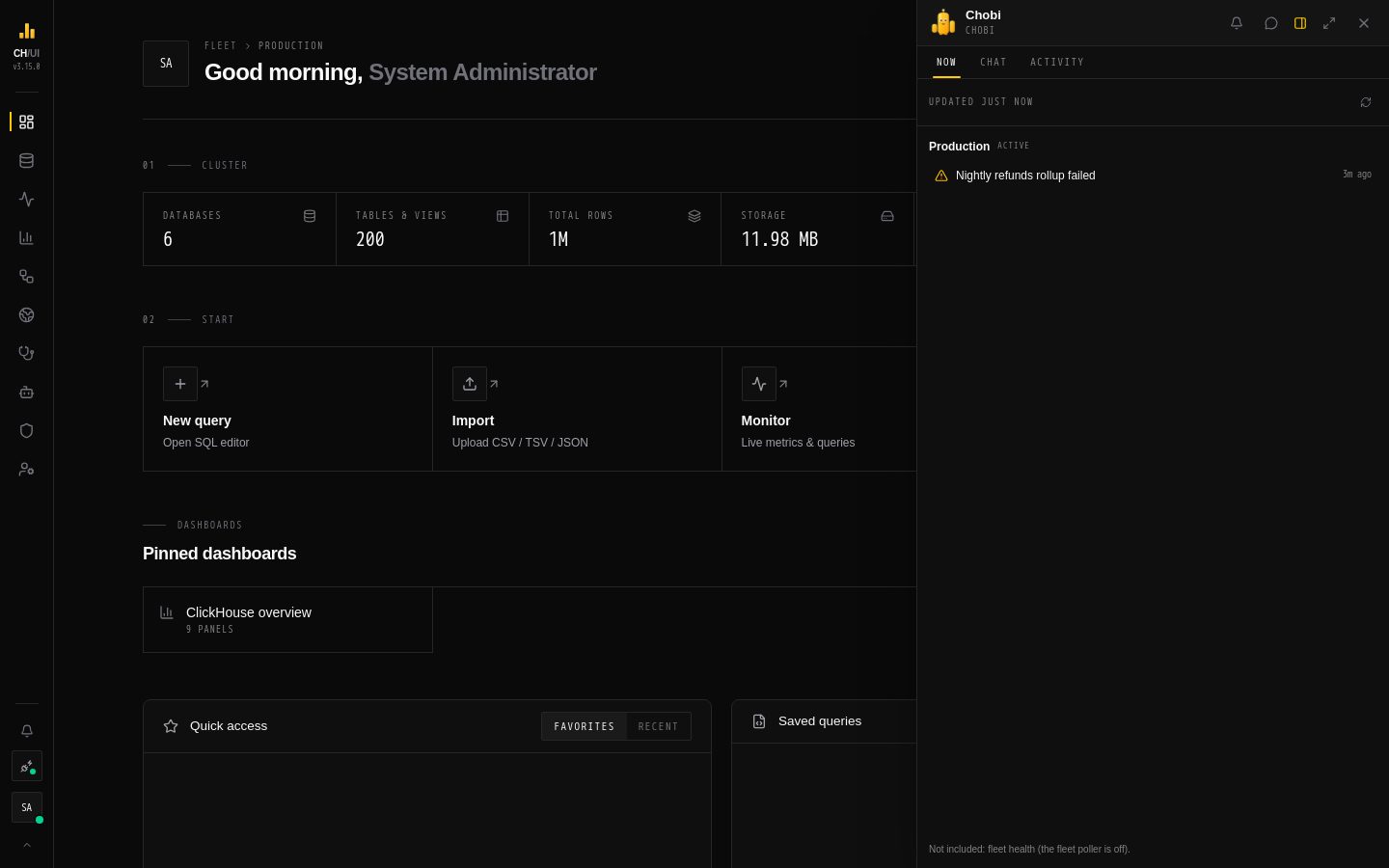
Chobi is the CHouse buddy: a little character made of the logo's three bars that parks on the edge of the screen and is the one place for AI in CHouse. It shows what needs a look, chats with CHouse Assistant, lists what AI changed for you, and points out news on its own — without getting in the way of what you are doing.
Why "Chobi"? The name is CHouse UI + chibi (ちび), the Japanese word for something small and cute — the style of the little, big-eyed character drawn from the CHouse logo.
Chobi appears for users with ai:chat once an AI model is set up.
Get started in three steps:
- Click Chobi on the right edge of the screen, or press Ctrl/⌘ J.
- Look at Now for what needs a look, or switch to Chat and ask a question — Which tables went stale today?
- Ask for a change — keep an eye on shop.orders until tomorrow — and see it in Activity, with Undo.
New to it? Let Chobi make a change walks through it with screenshots.
The launcher
Chobi sits on the right edge of the screen (on a phone, above the dock). Its face says what it is up to:
| Looks | Means |
|---|---|
| Thinking, a hand on its chin | A chat reply is being worked on |
| Arms up, antenna blinking | Something waits for your answer — the badge counts it |
| Wide eyes | It has news for you (a nudge) |
| Happy | A reply just finished |
| Asleep | AI is not available right now |
- Click to open or close the panel; Ctrl/⌘ J does the same from anywhere.
- Drag to move it: it snaps to the nearer side and keeps its height. With the keyboard: Alt + ←/→ switches sides, Alt + ↑/↓ moves it.
- Hover for a peek of its status.
The panel
Three sizes, from the panel's header:
| Size | For |
|---|---|
| Bubble | A floating card beside the launcher — quick questions |
| Docked | A side sheet the height of the screen |
| Focus | Most of the screen, with the thread history beside the chat |
On a phone the panel is always full screen. Chobi remembers its size, tab and place for you.
Now
What needs a look across every connection you can reach, built from data (no AI call): open incidents, scheduled jobs whose last run failed, clusters the fleet poller can't reach, changes waiting for your answer, your watches, and what AI changed for you today. The connection you are on comes first; quiet ones fold into one line. Click an item to open it — Chobi switches connection first if it belongs to another one — or Ask to have CHouse Assistant look into it. The list refreshes every minute while the page is open, and Refresh reloads it now. Sections you lack a permission for say so instead of showing "all clear".
Chat
The chat with CHouse Assistant. See Using the chat.
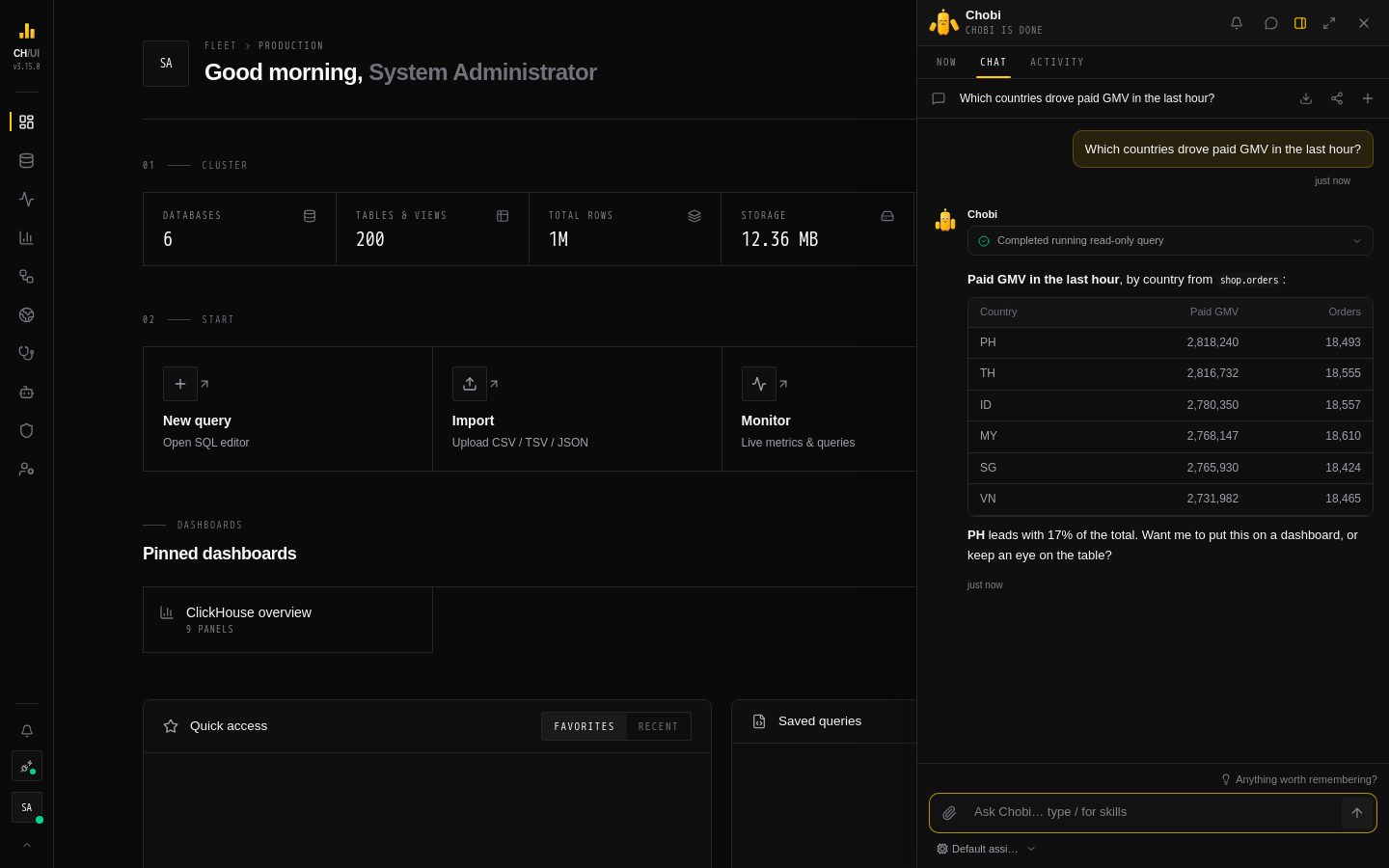 Chat: each step shows as it happens, then the answer
Memory suggestions — when a conversation has been quiet for a while, Chobi asks once for notes worth keeping and shows up to three above the composer: Save to me, Propose to team (for knowledge about the connection; an admin reviews it) or Dismiss. Nothing is saved without a click. Anything worth remembering? asks at once. Suggestions skip what memory already holds and anything an enforced guardrail keeps from the provider; each ask is one AI call, counted in AI usage as Suggest memories.
Activity
What waits for you and what AI changed:
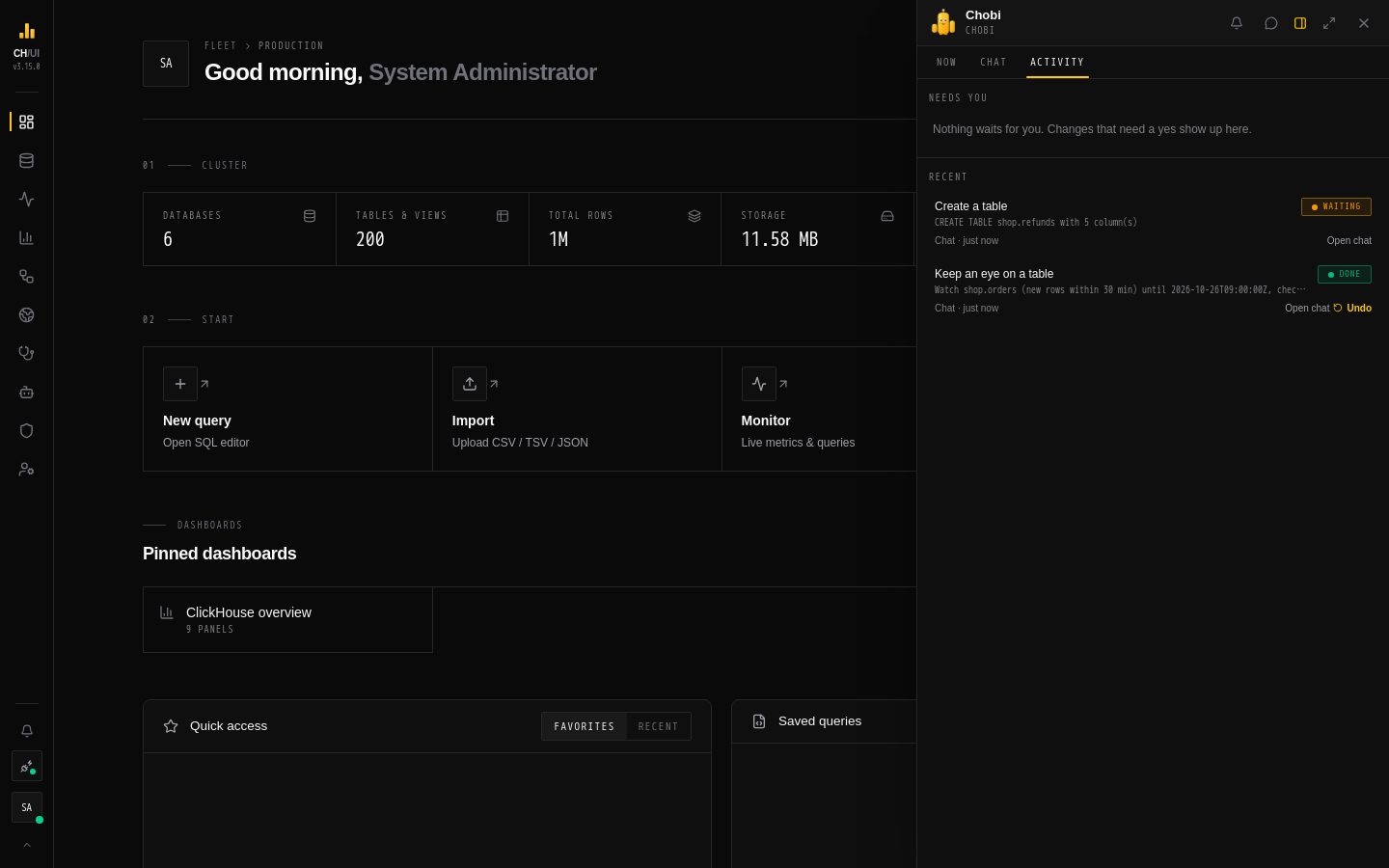 Activity: what waits for your answer, and every change AI made for you, with Undo
- Needs you — MCP calls held for your confirmation (Confirm / Decline), and second-approver changes you may approve.
- Recent — every change an agent made for you, in the chat, over MCP or the CLI, with its status and Undo while it is available.
See Approvals & tiers.
Above every dialog
Chobi stays usable while a dialog, a sheet or a menu is open: clicking or typing in Chobi never closes them, its lists still scroll, screen readers still see it, and Esc typed in Chobi closes Chobi, not the dialog behind it. The guided tour and notifications still appear above Chobi.
Nudges
When something new needs a look — an incident, a failed job, an unreachable cluster, a change waiting for you — Chobi says so beside the launcher for a few seconds. Click it to open Now. Nudges come from data, never from an AI call, and are limited: at most one every two minutes and six an hour, and none while you are looking at Now.
The bell in the panel's header mutes them for an hour, until 09:00 tomorrow, or until you turn them back on, and sets quiet hours (22:00–07:00).
Asking from anywhere
| How | What Chobi gets |
|---|---|
| Select text on a page, press Ctrl/⌘ J | The selection, attached to a new question |
| Drag text or an item onto Chobi | What you dropped, attached |
| In the SQL editor, Ctrl/⌘ J or right-click › Ask Chobi about this SQL | The selection, or the whole query, as query.sql |
| Ask on an item in Now | The item's facts — sent at once, in a new thread |
The context arrives as a text file with your message; a draft you are typing is never overwritten.
Watches
"Keep an eye on shop.orders until tomorrow" creates a personal watch: a Data Health check every 15 minutes that removes itself when it ends. Your watches are listed in Now.
Hand off
Hand off in the chat's header turns a conversation into a note for whoever picks it up: what was asked, where it landed, and the changes made (with their undo state), then the conversation. Built from the thread, no AI call.
| Where | Who can read it |
|---|---|
| Add to its notebook — an open incident's investigation notebook | Whoever can see the incident (needs notebooks:edit) |
| Post a summary — an alert channel (Slack, email…), after a second click | The channel's audience (needs alerting:edit); audited as alerting.channel_message |
| Copy or Download .md | You |
Need You alerts
Requests that wait on a person can go to team channels, so nobody has to open CHouse to notice them. In AI Governance › Assistant › Chobi › Alerts (ai_agents:manage) choose:
| Setting | What it does |
|---|---|
| Send for | Second-approver changes (T3), background approvals (auto-triage proposals), held MCP and CLI calls |
| Send if still waiting after | Only alert once a request has waited this many minutes (0 = at once) |
| Channels | Where alerts go; on a chat app channel, Approve from chat adds Approve and Decline |
Each alert says what the request does, who asked through what, the connection and when it expires — never its raw arguments — with Review in CHouse. It goes to each channel once, and is edited when the request is decided, runs, fails or expires, wherever that happened. Approve and Decline run as the person who pressed them, with the same checks as Approvals: a second-approver change can't be approved by the person who asked for it, but they can decline (withdraw) it. Who may press the buttons is set on each channel, in Admin › Alerting.
Alerts need PUBLIC_BASE_URL for the review link; without it none are sent and the settings say so. Each send is audited as chobi.alert_sent.
Plain mode and other settings
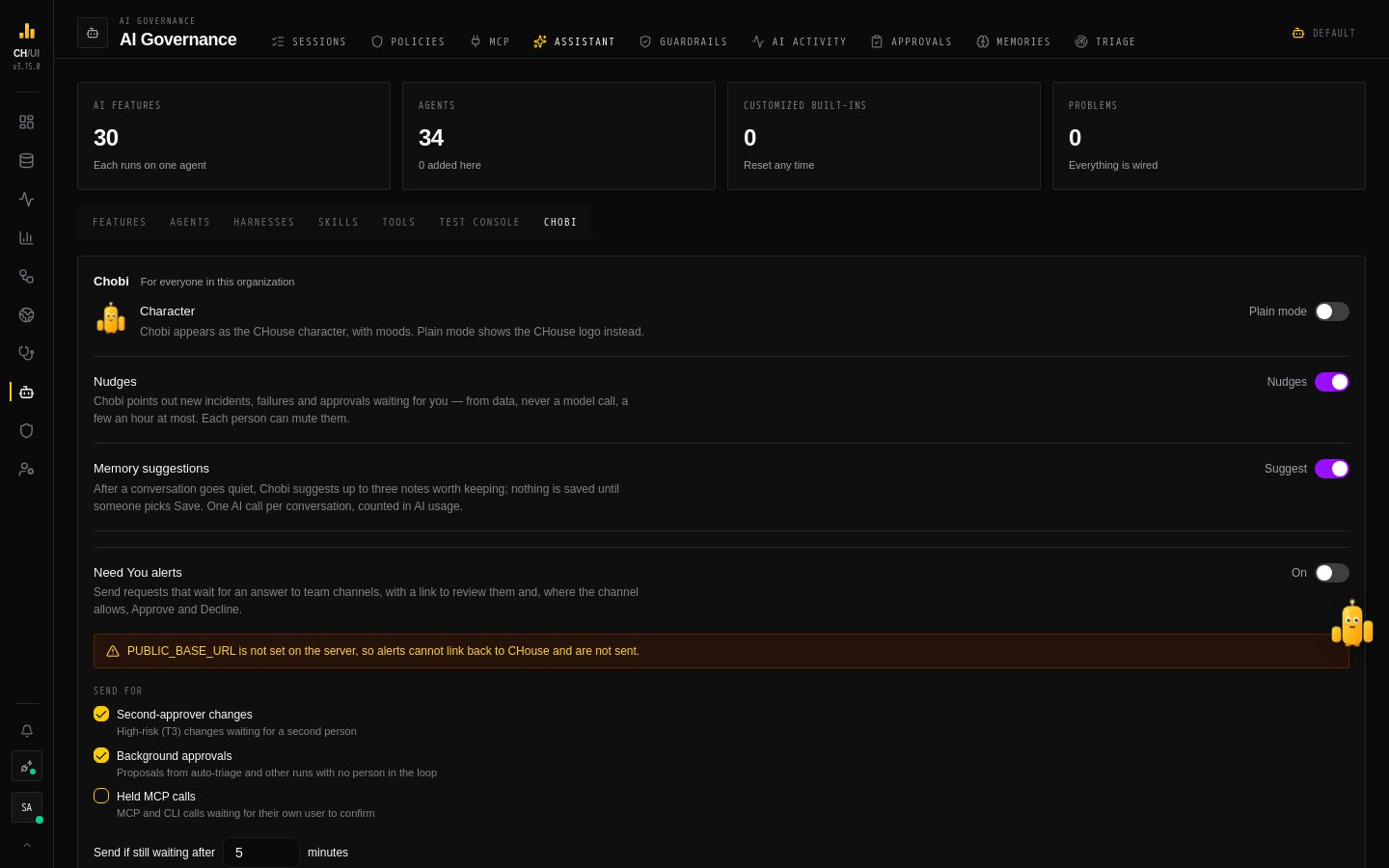 AI Governance › Assistant › Chobi: plain mode, nudges, memory suggestions and Need You alerts
In AI Governance › Assistant › Chobi (ai_agents:manage, audited as chobi.settings_update) an administrator can show the CHouse logo instead of the character, turn nudges off for everyone, turn memory suggestions off, and set up Need You alerts.