
Approve from Slack
Connect a Slack channel as a chat app, send approvals and alerts there, and act on them with buttons that run as you.
Most requests that wait on a person — a fix to approve, an AI change that needs a second approver, a Data Health alert to acknowledge — reach people faster in the chat they already watch. This guide connects a Slack channel as a chat app, so alerts update themselves and carry buttons, then sends approvals there. Google Chat and Telegram work the same way; their setup is in Chat apps.
You need alerting:edit for the channel and ai_agents:manage for the approval alerts.
Before you start
Buttons call back to CHouse, so Slack must reach it over HTTPS:
- Set
PUBLIC_BASE_URL(HelmpublicBaseUrl) to CHouse's external address, such ashttps://chouse.example.com. - Let
/api/integrations/*through your ingress or proxy.
Without these, messages still post and still update, but nobody can press a button.
1. Create the Slack app
- Go to api.slack.com/apps › Create New App › From an app manifest, pick your workspace, and paste the manifest from Chat apps › Slack, with your address in
request_url. - Install to Workspace. Copy the Bot User OAuth Token (
xoxb-…), and under Basic Information › App Credentials, the Signing Secret. - In Slack, invite the bot to the channel (
/invite @CHouse), and copy the channel ID from channel details › About (it starts withC).
2. Add the channel in CHouse
Open Admin › Alerting › Channels and choose Add channel. It takes four steps:
- Platform — Slack.
- Connect — name the channel, choose App mode and enter the bot token, the signing secret and the channel ID. The dialog shows the Interactivity request URL to paste into the Slack app's settings, if you didn't put it in the manifest. Create and test.
- Test — CHouse says which bot it is and posts a test message to the channel.
- Who can act — optional: limit who may press this channel's buttons to some Slack users or user groups, or some CHouse users or roles. Everyone else gets a private "not allowed" reply.
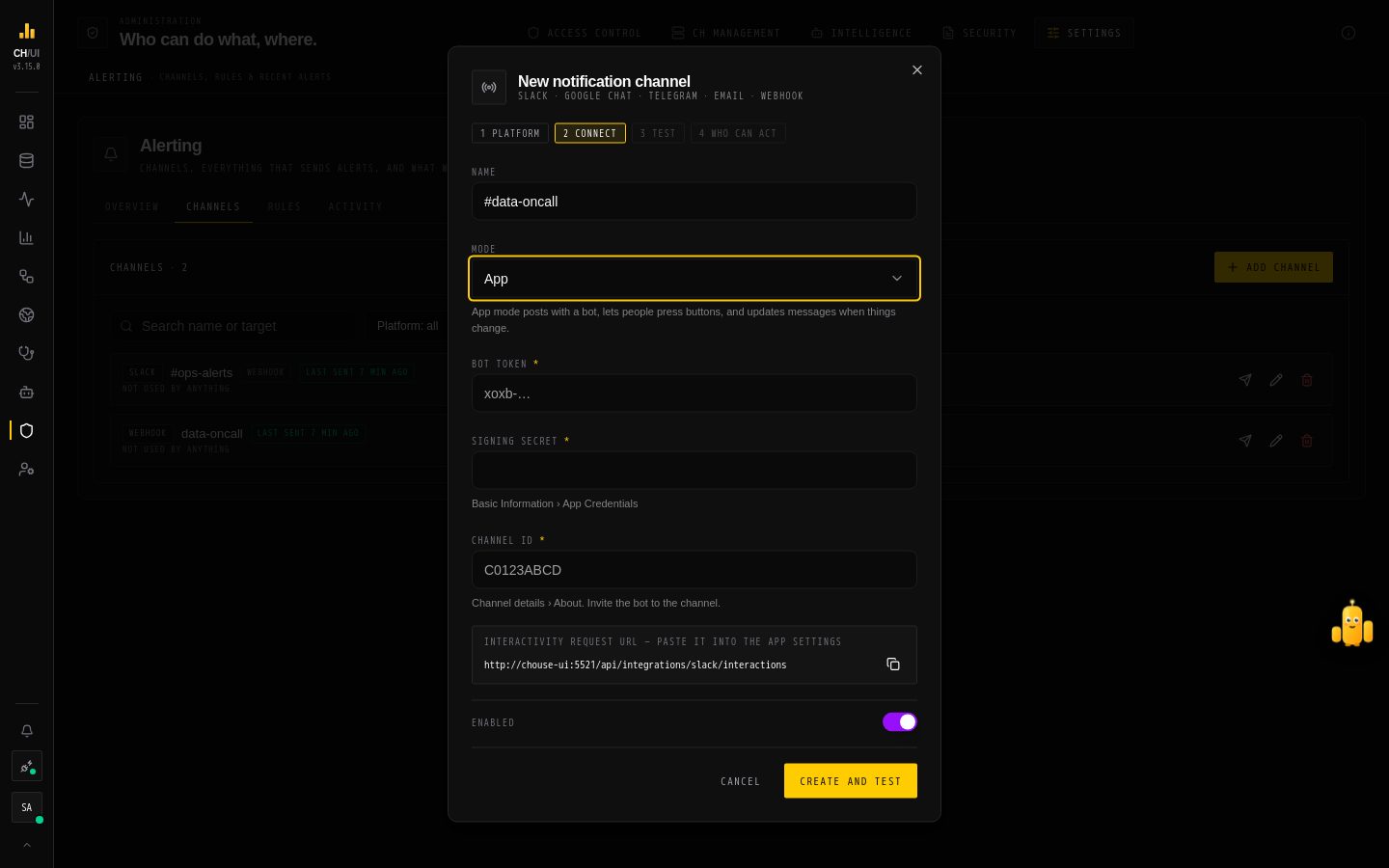 Admin › Alerting › Channels › Add channel: platform, connect, test, who can act
The channel now shows in Channels with its delivery health and what uses it.
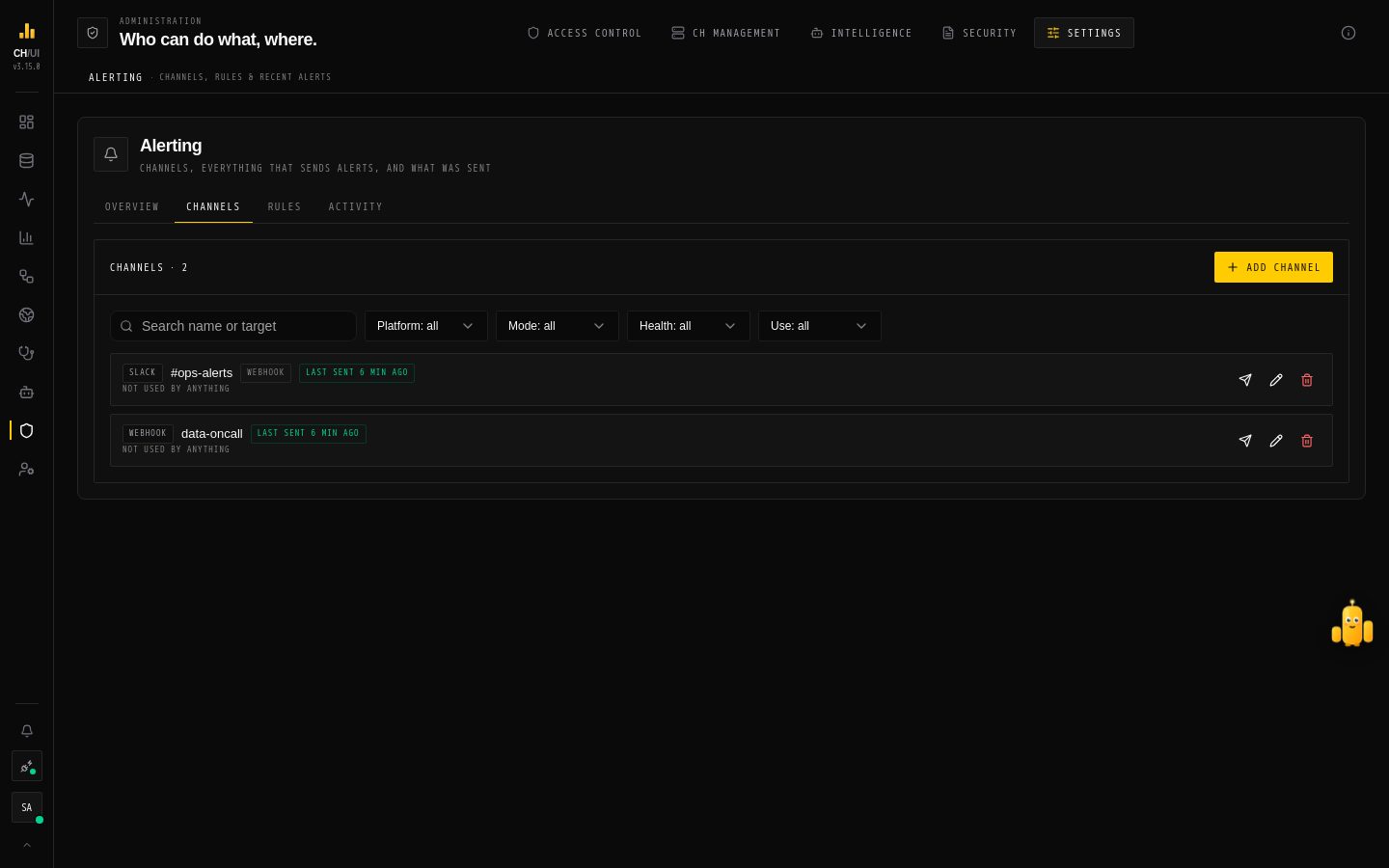 Channels: each channel's mode, health, and the features that send to it
3. Send alerts to it
Pick where each kind of alert goes in Admin › Alerting › Rules — it lists every feature that sends alerts: fleet rules, Data Health promises, dashboard alerts and reports, scheduled query failures, the Doctor, auto-triage, and Remediation approvals for fix proposals.
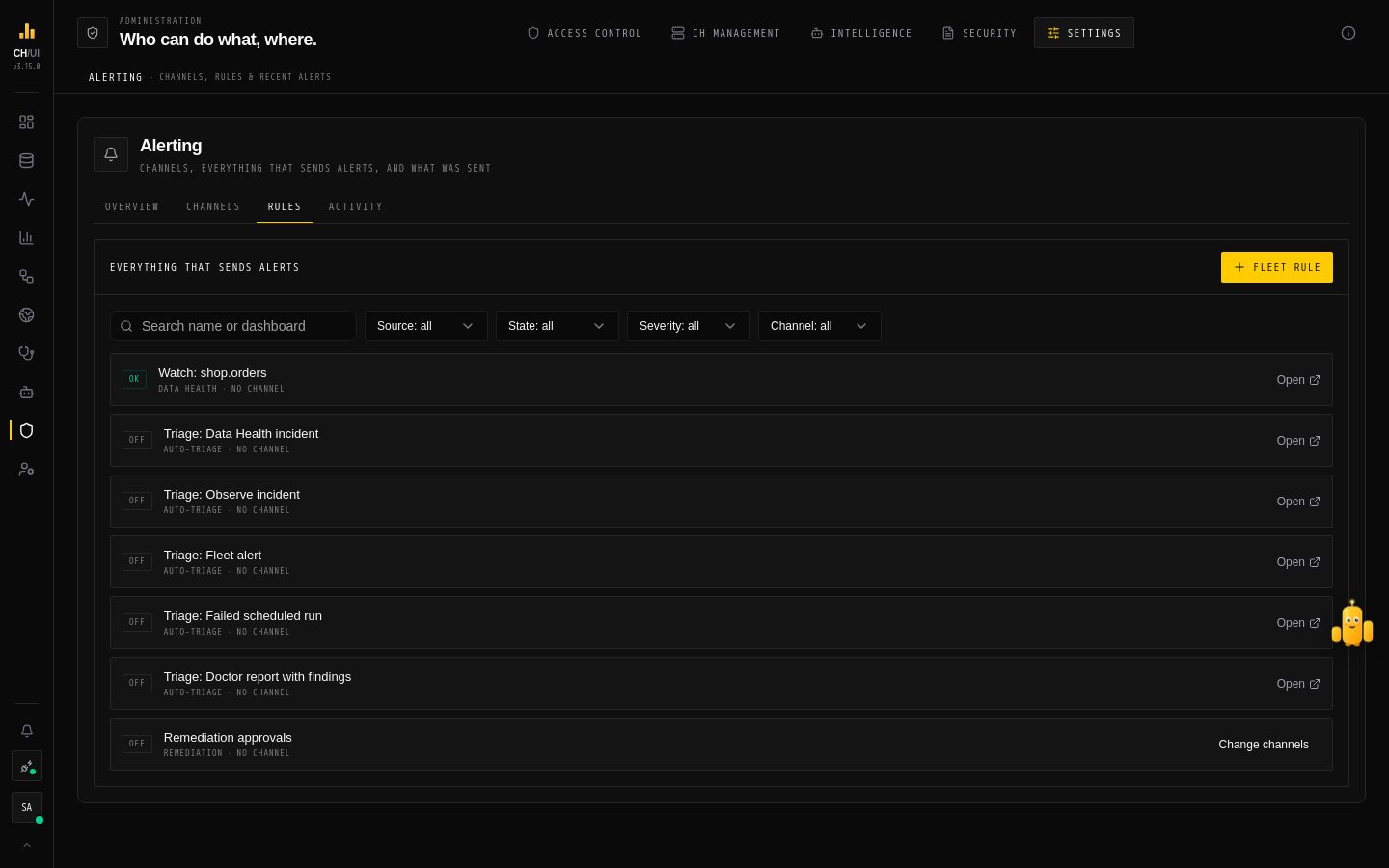 Rules: every feature that sends alerts, in one list
On a chat app channel, alerts update themselves: a fleet or dashboard alert shows resolved in place, and a request shows who decided it.
4. Send approval requests
In AI Governance › Assistant › Chobi › Alerts, turn on Need You alerts:
- Send for — second-approver AI changes, background approvals (from auto-triage), and MCP or CLI calls held for confirmation.
- Send if still waiting after — only alert when nobody answered in CHouse within this many minutes (0 sends at once).
- Channels — pick the Slack channel and switch on Approve from chat.
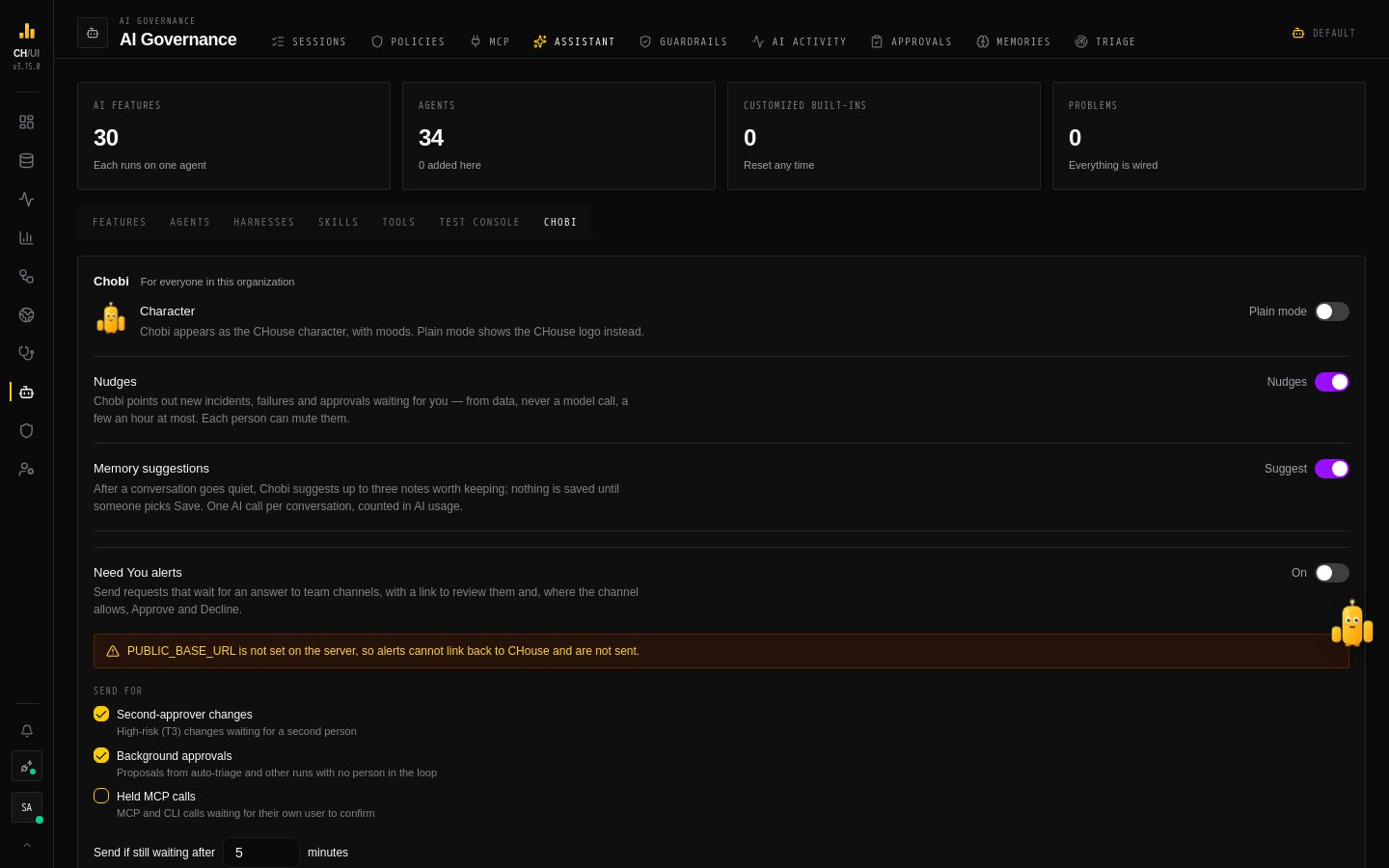 AI Governance › Assistant › Chobi: plain mode, nudges, memory suggestions and Need You alerts
5. Press a button
When a request arrives, the message says what it does, who asked, on which connection and when it expires — never its raw arguments — with buttons:
| On | Buttons |
|---|---|
| Data Health alerts | Acknowledge, Snooze 1h |
| Fix proposals | Approve, Reject |
| AI requests | Approve, Decline |
CHouse matches the Slack user to an active CHouse user by email, then runs the action through the same route as the UI, as that person. All the usual rules apply: someone without the permission is refused, a requester can't approve their own second-approver change, and a high-impact fix still needs two people. The answer comes back privately to whoever pressed, and the message is edited for everyone.
Every press is audited as alerting.chat_action, and Admin › Alerting › Activity shows where each alert went and whether it got there.
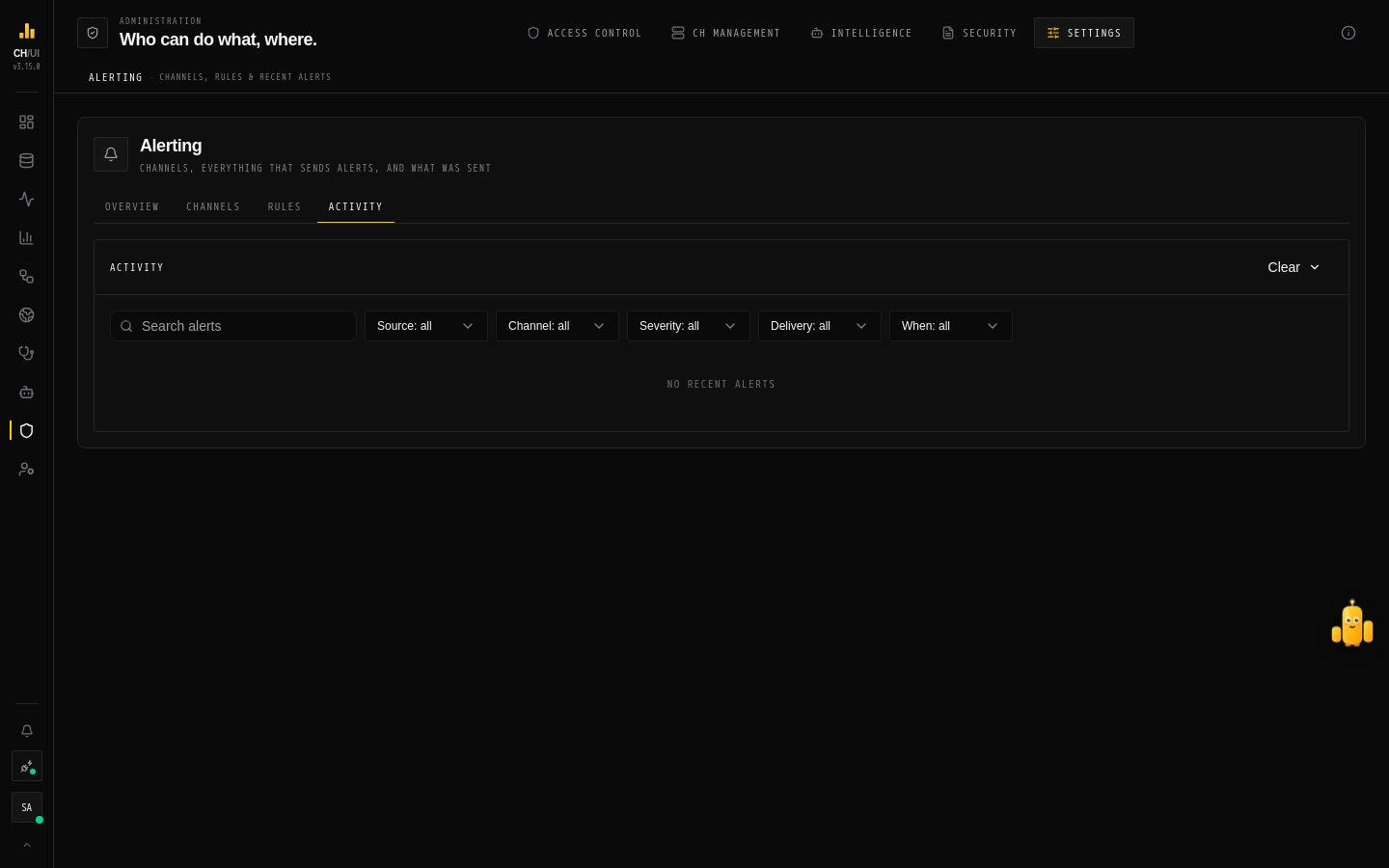 Activity: searchable history of every alert, where it went, and whether it was delivered
Telegram users
Telegram has no email, so each person links their account once: Preferences › Linked chat accounts › Link Telegram opens the bot with a one-time code; press Start.
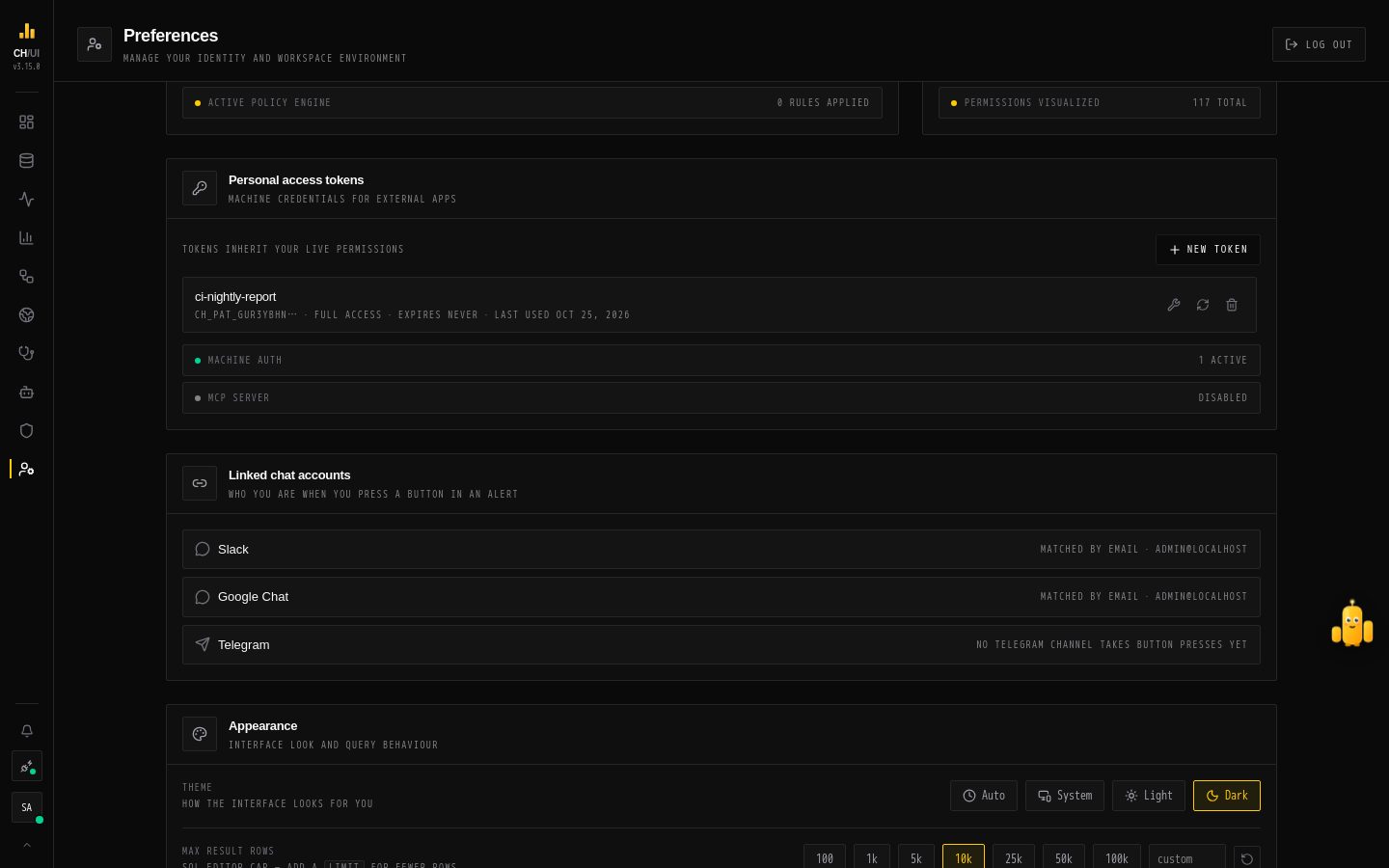 Preferences › Linked chat accounts: who you are when you press a button in an alert
Next
- Chat apps — Google Chat and Telegram setup, how each press is checked, limits.
- Alerting — the Overview, Channels, Rules and Activity views.
- Need You alerts — every setting.