
Users & roles
The built-in roles from Super Admin to Guest, what each can do, and how role assignment works.
- In the app
- Admin › Users and Admin › Roles
/admin/users - Needs any of
- users:viewroles:view
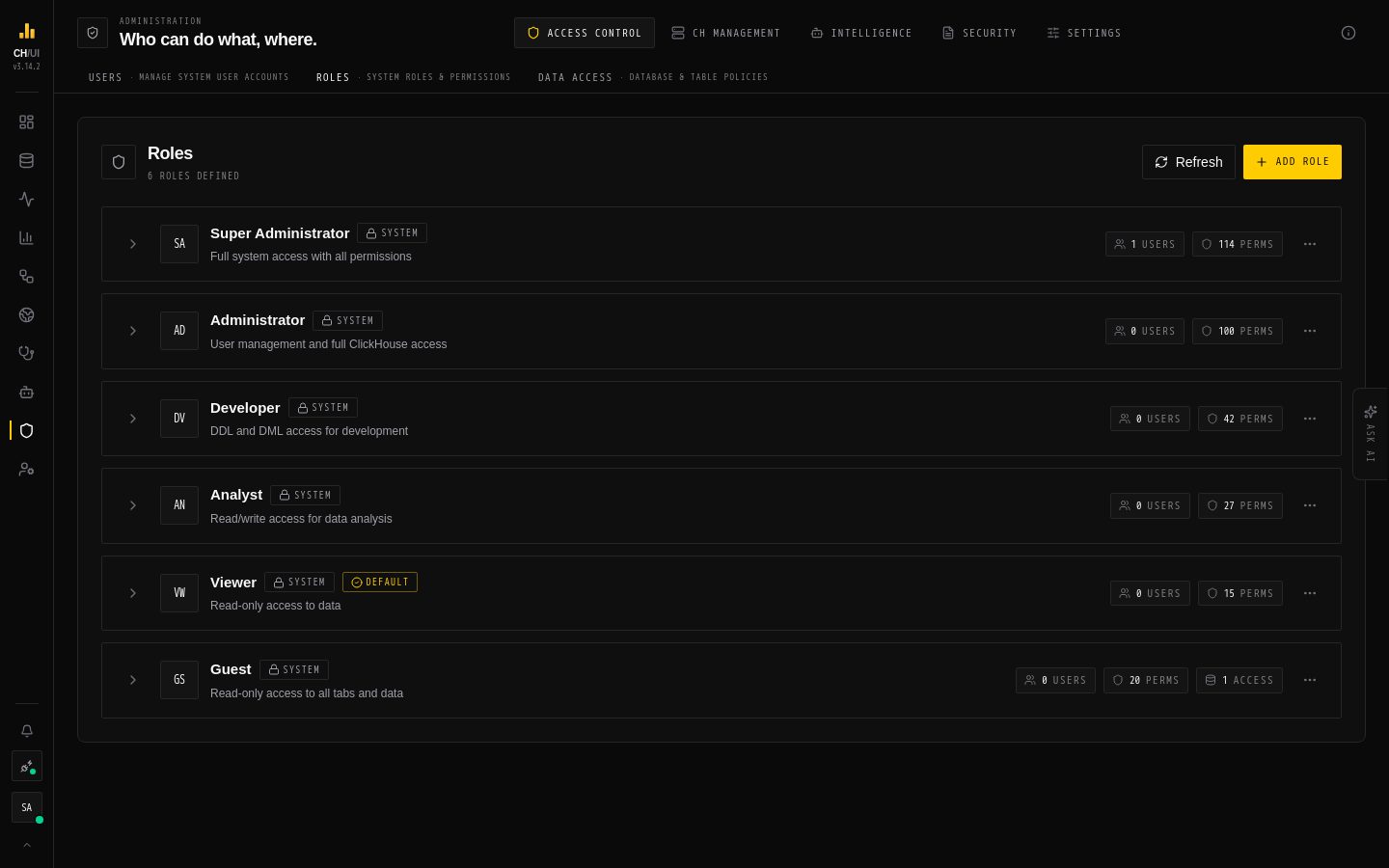
CHouse UI has its own users and roles, stored in its RBAC database (SQLite or PostgreSQL) and separate from ClickHouse's users. They decide who can sign in to CHouse UI, what they can do there, and — through data access policies — which connections, databases and tables they can touch. Queries still reach ClickHouse as the connection's own user, so ClickHouse grants apply on top.
To manage real ClickHouse accounts instead, see ClickHouse users & roles.
Built-in roles
Six roles exist from the first start: Super Admin, Admin, Developer, Analyst, Viewer and Guest. The permission catalog shows exactly which permissions each one holds.
- Built-in roles can't be deleted, and only a super admin can change them.
- The first-run admin account (
RBAC_ADMIN_*, see First login) is a Super Admin. - One role can be marked default: users created without a role get it. Users created by SSO get
AUTH_SSO_DEFAULT_ROLE(or a mapped role) instead.
Users
Admin › Users (/admin/users) lists every user with their sign-in method, roles, status and last login. Filter by role or status, search, and switch between card and list view. From a user's ⋯ menu: Edit, Reset password, and Deactivate / Reactivate.
Create a user
- Admin › Users › Create user (
/admin/users/create, needsusers:create). - Enter email, username (lowercase letters, numbers,
_and-) and display name. - Type a password or choose Generate. Passwords need 12+ characters with an uppercase letter, a lowercase letter, a number and a special character, and are stored as Argon2id hashes.
- Pick a role (needs
roles:assign; otherwise the default role is used). The summary shows the data access that role's policies grant. - Create user. A generated password is shown once — copy it and share it securely.
Users who sign in with SSO are created automatically on their first sign-in; you don't need to create them first.
Edit, reset and deactivate
Open a user (/admin/users/edit/<id>, needs users:update) to change their details and role, see their effective permissions, and:
- Reset password — set or generate a new one; it is shown once.
- Unlink an SSO identity, so the user signs in with a password again.
- Set the status to Inactive to block sign-in without deleting anything. Deleting a user needs
users:delete.
Only super admins can edit super admin users.
Note: Users can't change their own password from Preferences. The seeded admin changes it in the Getting started guide on first install; after that, an admin resets passwords here. Users who sign in with SSO manage their password at the identity provider.
Roles
Admin › Roles (/admin/roles, needs roles:view) shows each role as a card with its permissions grouped by category and the data access policies attached to it.
Create a custom role
- Create role (needs
roles:create). - Role name — starts with a letter; letters, numbers,
_and-. It can't be changed later. Add a display name and description, and optionally make it the default role for new users. - Permissions — tick what the role may do, grouped by category; search to find one. At least one is required.
- Data access policies — pick the policies that decide which connections, databases and tables the role reaches. Custom roles need at least one, so create the policy first in Admin › Data access.
- Save. Every user with the role gets the change on their next request.
Tip: Start from the closest built-in role in the permission catalog, then add or remove what differs. A user with several roles gets the union of their permissions and policies.