
Let Chobi make a change
Set up AI changes once, then meet all three tiers: a change with Undo, one that asks first, and one that needs a second person.
Chobi can do more than answer questions: ask it to save a query, keep an eye on a table or create a table, and CHouse Assistant makes the change as you, through the same checks as the UI. This guide sets it up once, then walks through the three kinds of change you will meet: one that runs with Undo, one that asks first, and one that needs a second person. Background: Approvals & tiers.
Before you start
Do this once (an administrator):
- Add an AI model. In Admin › AI Models, add a provider and a model and make it the default. See AI models. Chobi shows up for everyone with
ai:chatonce a model is set. - Decide who may let AI change things. Changes need
ai:act. The built-in Admin, Developer and Super Admin roles have it; add it to any custom role that should. Without it, people can still chat and read, and can reject a change, but not approve one. - Mark production connections. In Admin › Connections, edit each connection and set Environment to Production, Staging or Development. On a production connection every change is one tier stricter: what would run with Undo asks first, and what would ask first needs a second person.
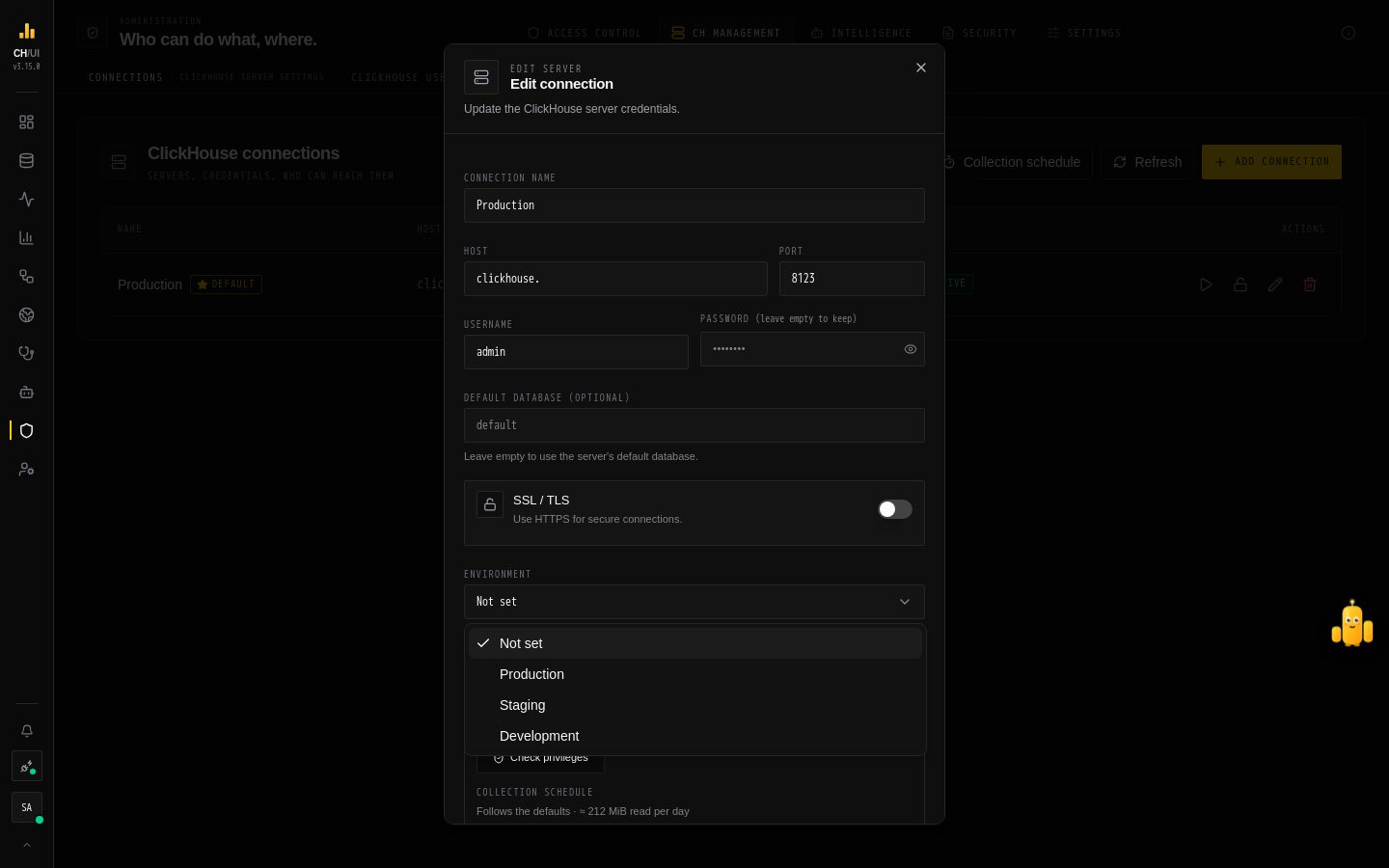 Admin › Connections › Edit: mark a connection Production so AI changes there are one tier stricter
1. Open Chobi
Chobi sits on the right edge of the screen. Click it, or press Ctrl/⌘ J from anywhere. The panel has three tabs:
- Now — what needs a look across all your connections: open incidents, failed jobs, unreachable clusters, changes waiting for you.
- Chat — the conversation with CHouse Assistant.
- Activity — what waits for your answer, and every change AI made for you, with Undo.
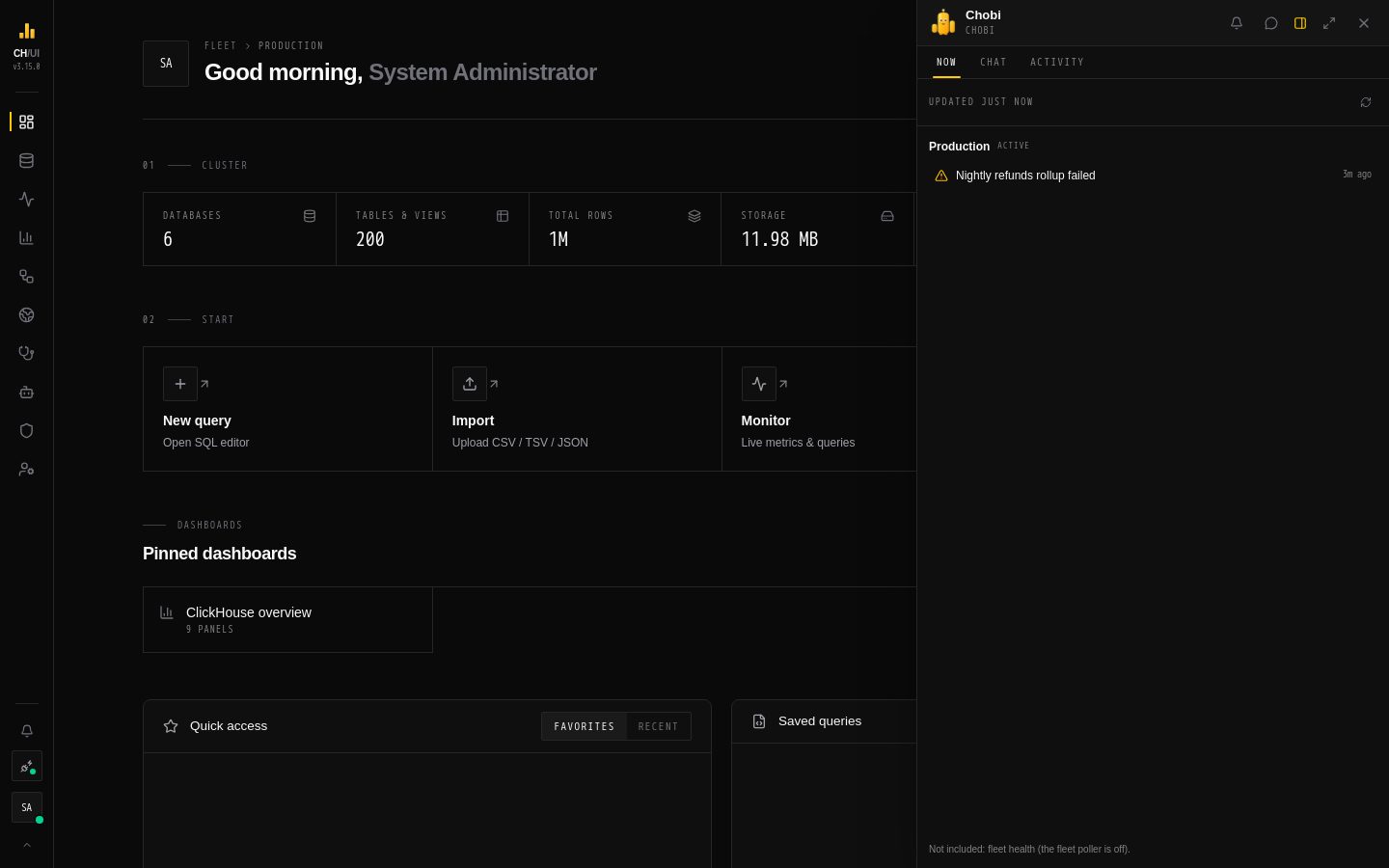 Now: what needs a look across every connection you can reach, built from data — no AI call
Pick a size from the panel's header: Bubble for a quick question, Docked for a side sheet, Focus for most of the screen.
2. Ask a question first
Start with a read, such as Which countries drove paid GMV in the last hour? Each step shows as it happens — here, the query it ran — and the answer comes once the guardrails have checked it. Stop stops the reply on the server; a reply keeps going if you close the panel or reload the page.
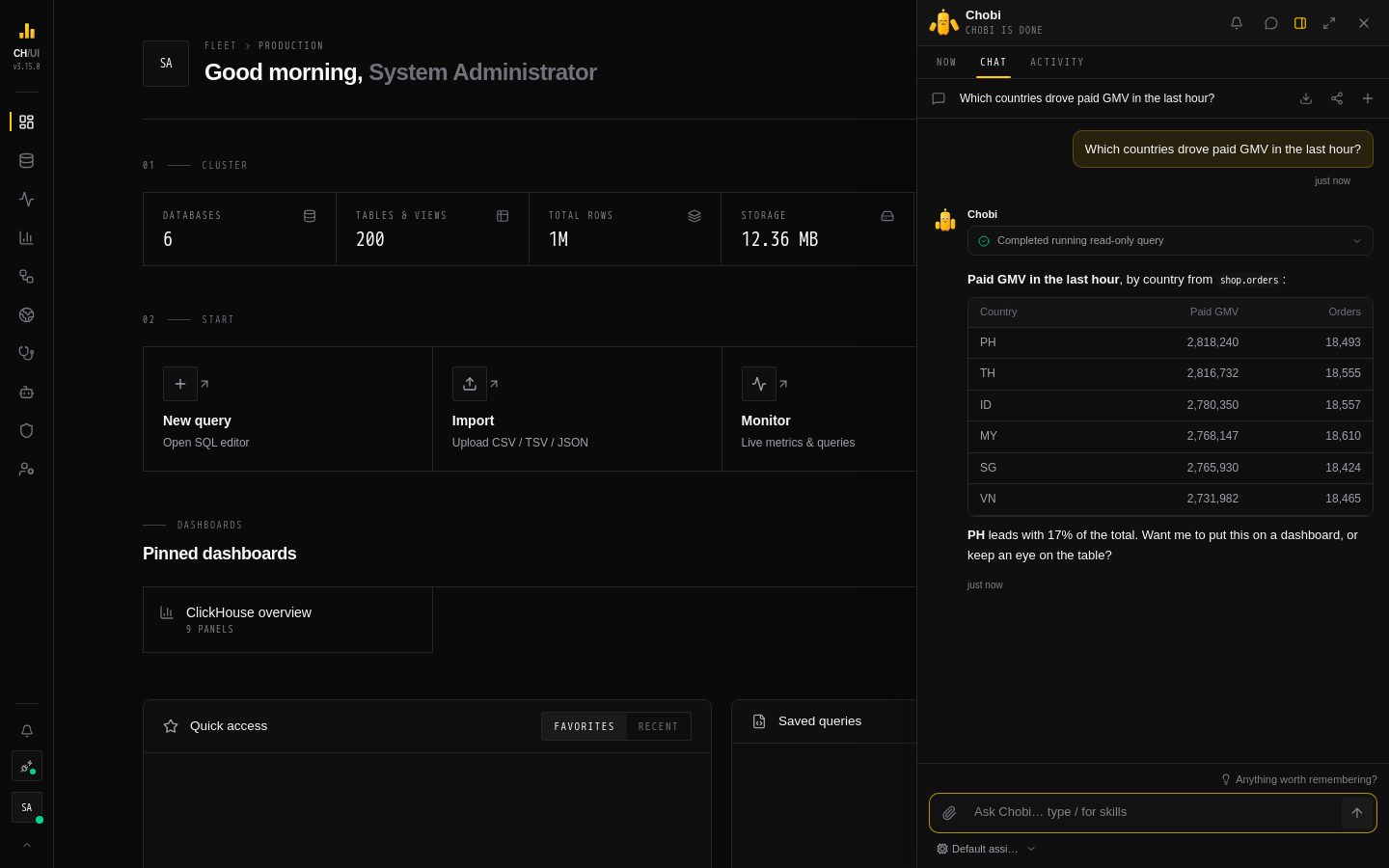 The chat shows each step it took, then the answer
Reads never ask: the assistant only sees what your own permissions and data access rules allow.
3. A change that runs with Undo
Ask Keep an eye on shop.orders until tomorrow. A watch is easy to take back, so it runs at once, and the chat shows a receipt: Done · Undo.
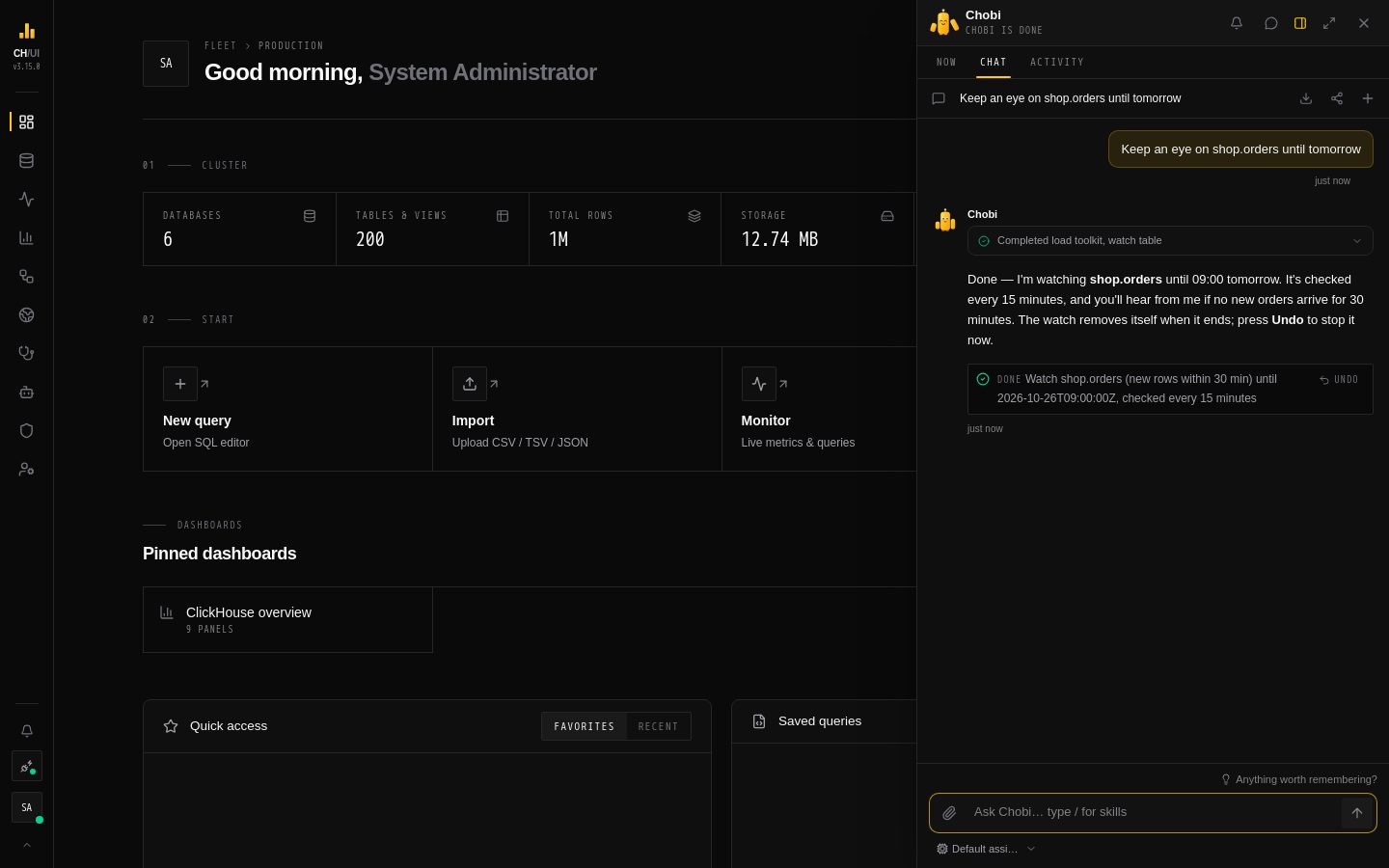 Undoable changes run at once and show Done · Undo for 24 hours
Undo works for 24 hours — on the receipt, in Activity, or with chouse action undo. It puts back exactly what was there, and refuses if someone changed the object since, rather than overwrite their work.
4. A change that asks first
Ask Create a table shop.refunds for refund events. A new table can't be undone the same way, so the reply pauses on an approval card with exactly what will run:
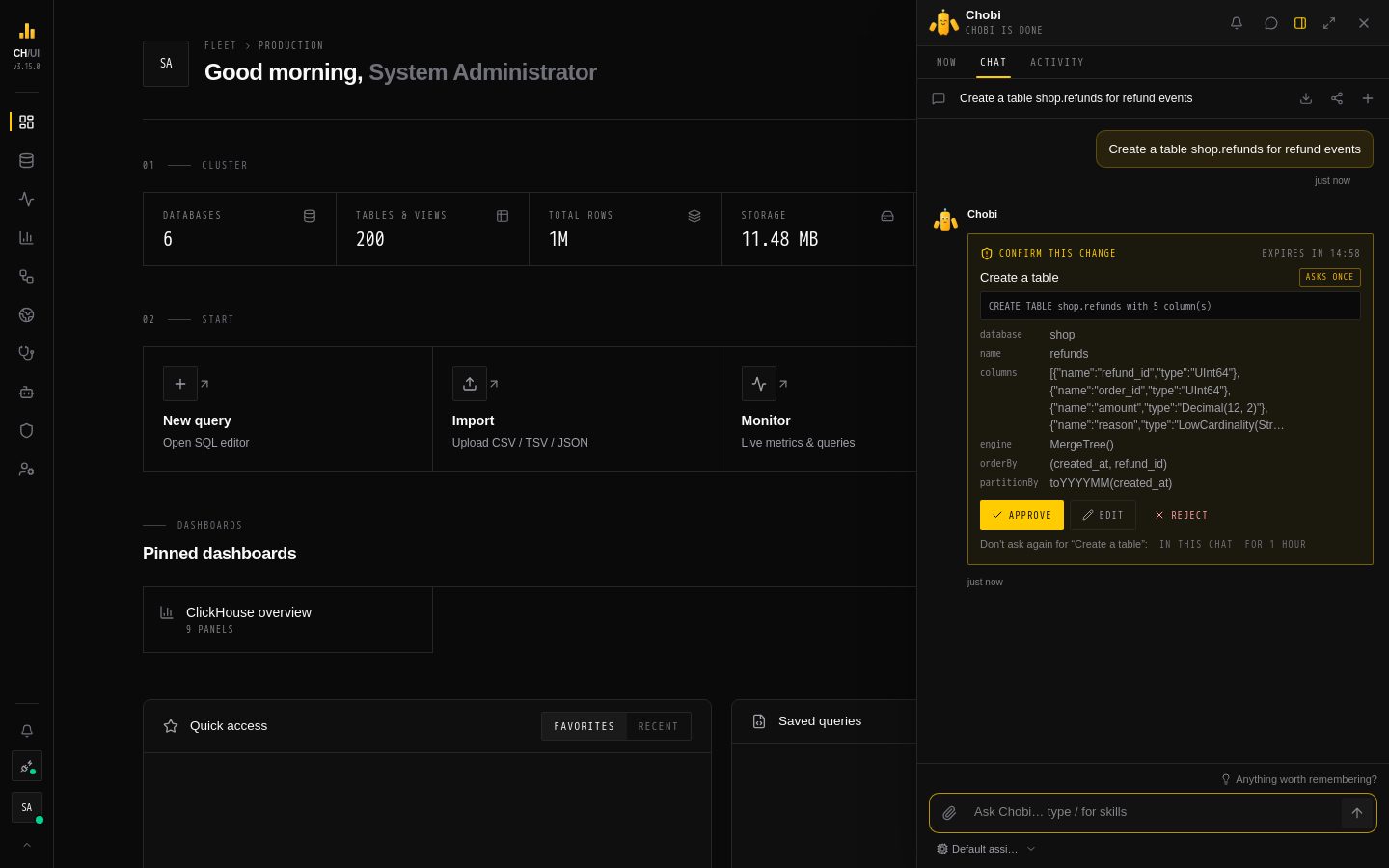 Changes undo can't reverse pause for one approval, with Approve, Edit and Reject
- Approve runs it, as you.
- Edit lets you change the arguments first — say, the sort key.
- Reject tells the assistant no, and it carries on without it.
If you will be asking for the same kind of change again, approve with In this chat or For 1 hour to skip the card for that tool. When the assistant needs several changes, they pause together as one plan: Run plan or Cancel plan.
5. A change that needs a second person
Privileged or destructive changes — DROP, ALTER, roles, users, data access policies, and anything touching your own access — need a different person who holds the same permission. The chat files the request and carries on; it waits in AI Governance › Approvals and in the approver's Activity tab.
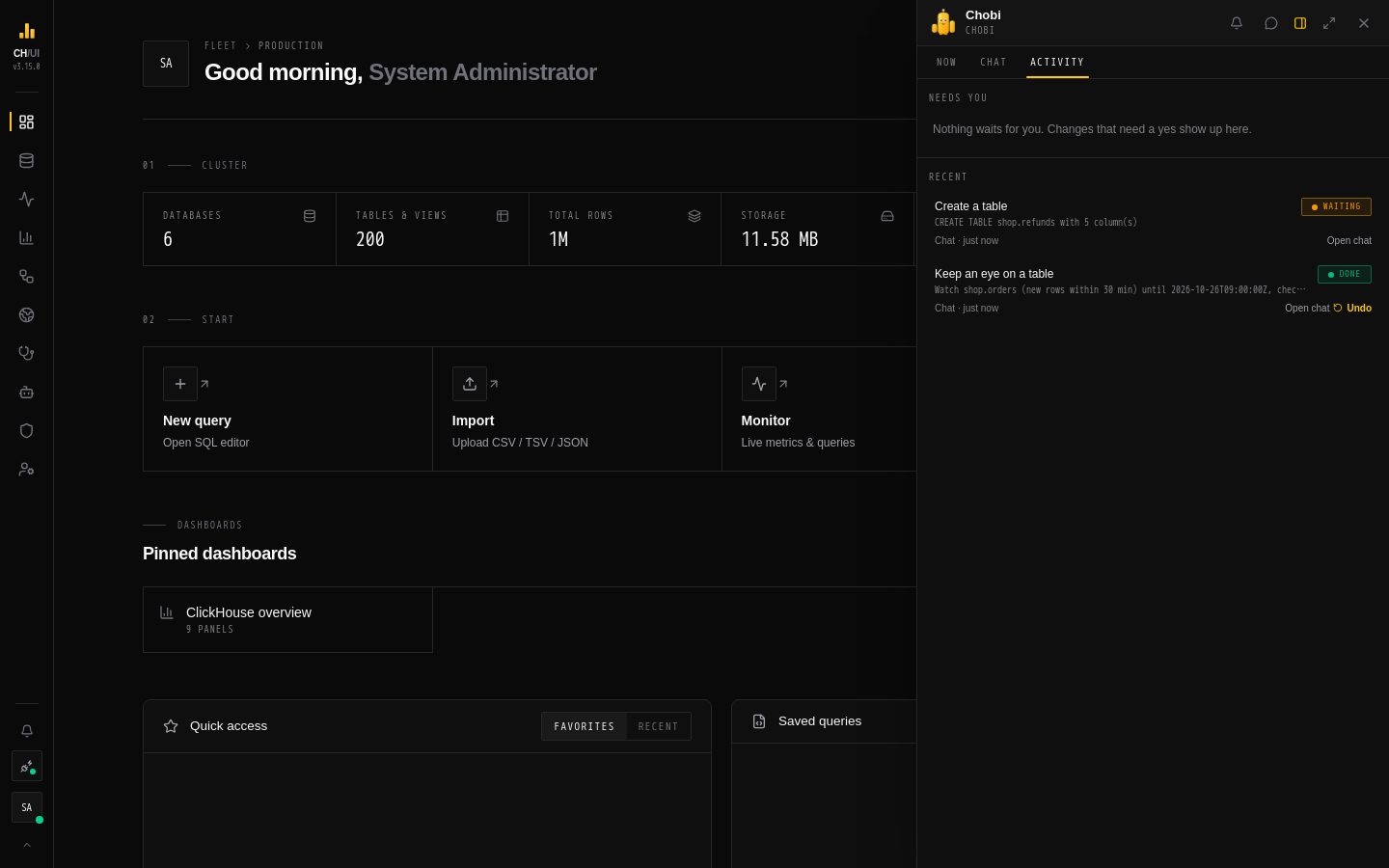 Activity: what waits for you, and what AI changed for you, with Undo
The approver opens AI Governance › Approvals, reads what it does, who asked and where, and approves or declines. Nobody can approve their own request, but they can withdraw it.
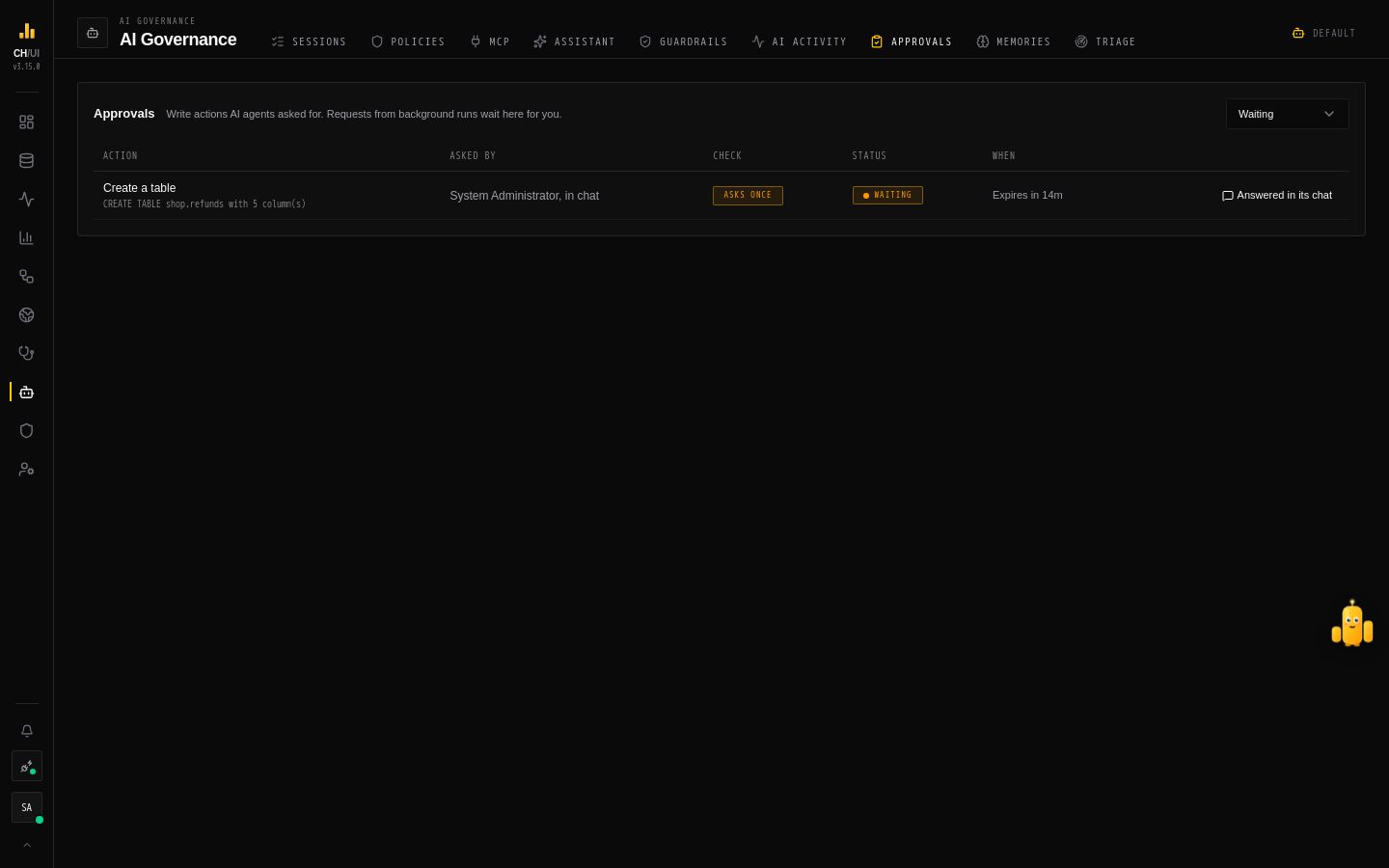 Approvals: the queue of changes waiting for someone, and the history of every AI change
To approve without opening CHouse, send these requests to Slack, Google Chat or Telegram: see Approve from Slack.
What AI can never do
Passwords and other secrets, creating or editing connections, ClickHouse users, SSO, personal access tokens, guardrails, budgets, AI models, and approving anything — these are not AI tools at all. Every change is in the audit log with the agent that asked for it.
Next
- Chobi — nudges, watches, asking from anywhere, hand off.
- Approvals & tiers — every tier rule, plans, allows and the tool list.
- Memory — let agents remember your preferences.