Build a dashboard on the canvas
From a template to a tidy canvas, then what changed, whether it is normal, why it spiked, and sharing what you saw.
This guide builds a dashboard from a template, arranges it on the canvas, and then uses what makes a CHouse dashboard answer the next question: what changed, whether a value is normal, and why it spiked. You need dashboards:edit and query:execute. Background: Dashboards.
1. Start from a template or a goal
Open Dashboards. The list has tabs for All, Mine, Shared with me, Pinned and Templates, with search and sort.
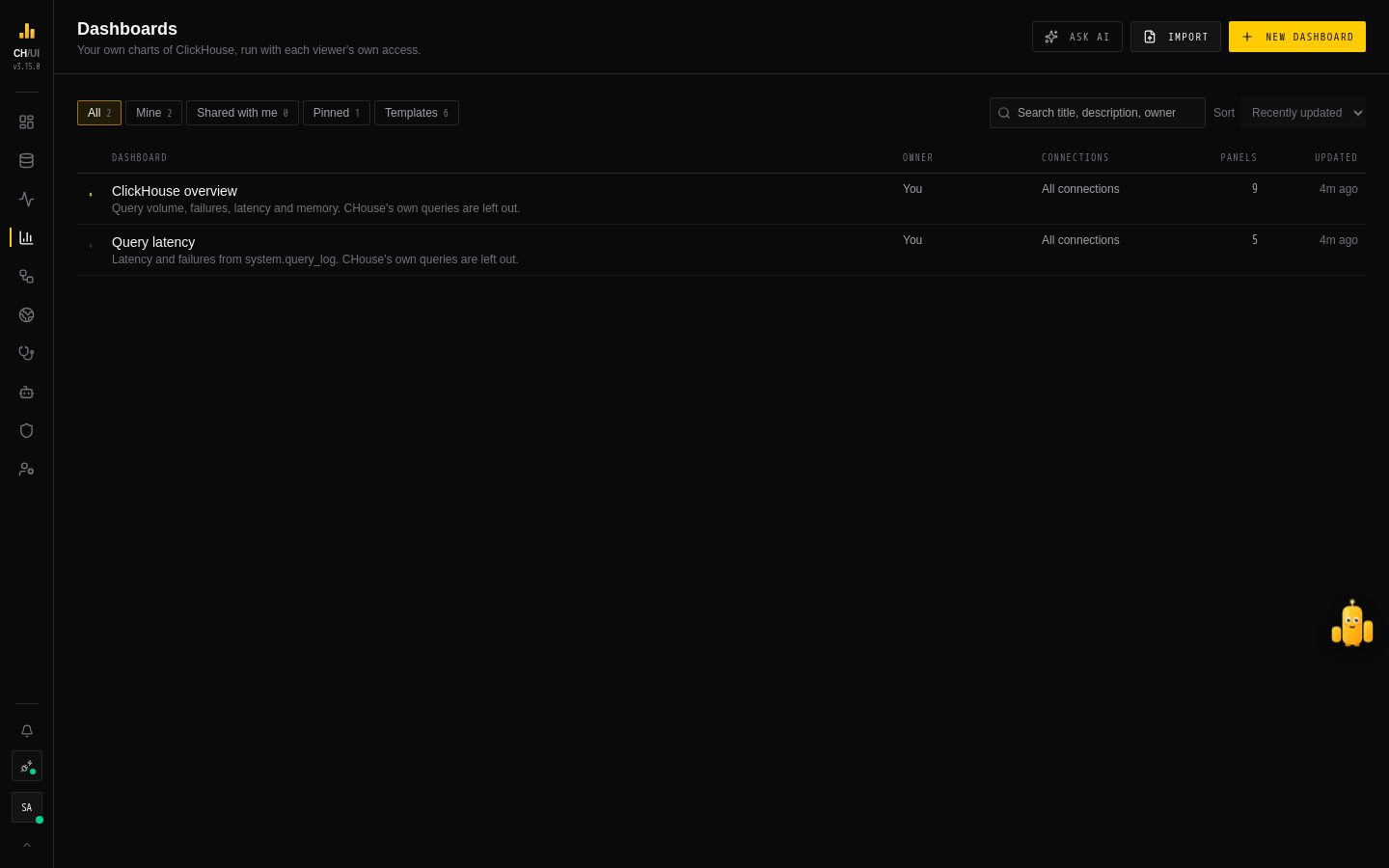 Dashboards: one searchable table, with tabs for yours, shared, pinned and templates
Pick one way in:
- Templates › Use template — ClickHouse overview is a good first one.
- Ask AI — describe what you want to see (orders and paid GMV per country over time) and review a draft first. See Draft dashboards with AI.
- Import — a CHouse export, or a Grafana dashboard (step 6).
2. Arrange the canvas
Choose Edit. Panels sit on a 24-column grid:
- Drag a panel by its grip; resize it from any edge or corner. Panels never overlap and never shrink below a readable size.
- Add a chart, a text panel (Markdown — runbooks, links, who to call) or a heading to start a section.
- Tidy up lays the whole dashboard out for you: current values in a row at the top of each section, then trends, then breakdowns two to a row, then tables at full width.
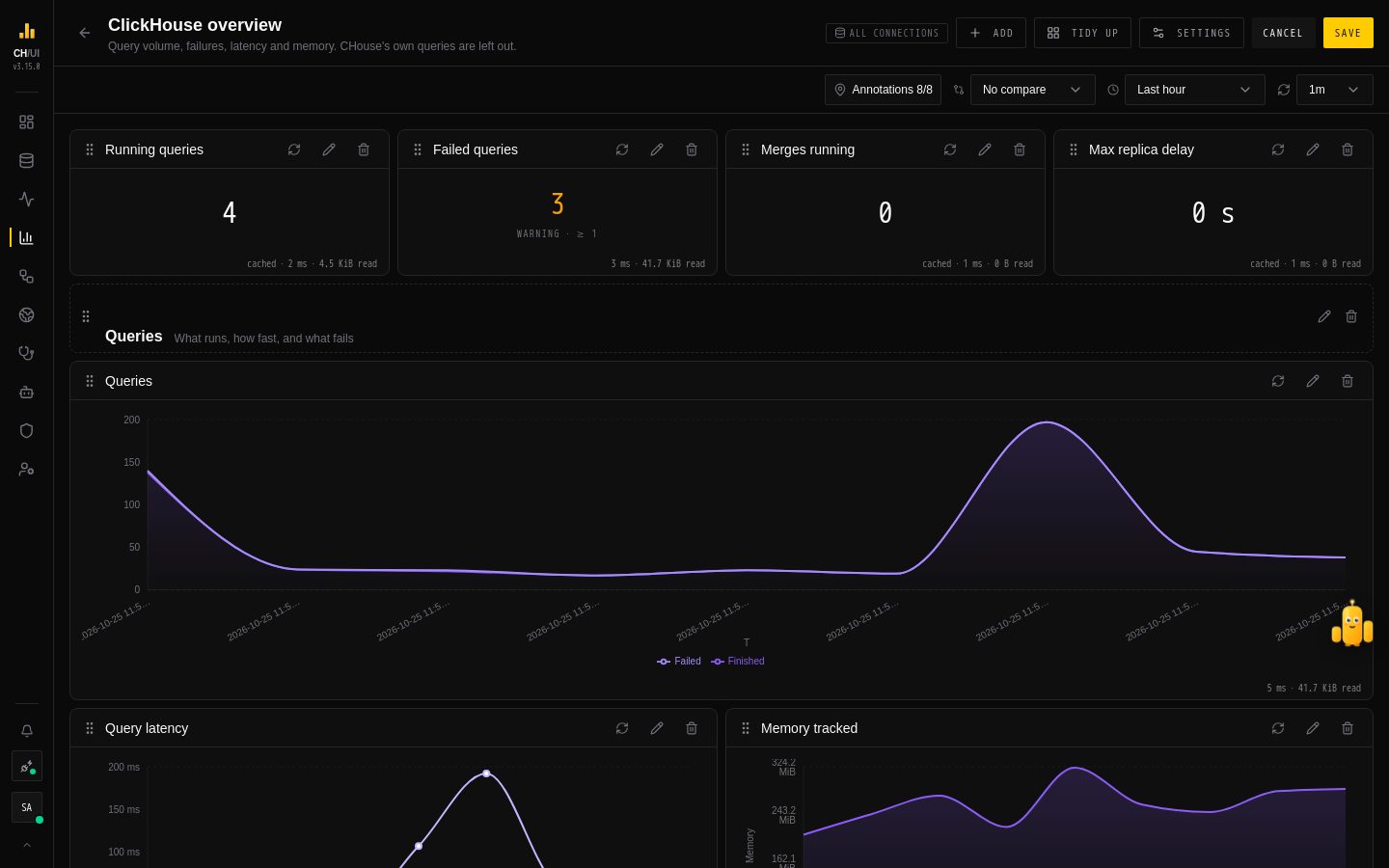 Edit mode: drag, resize, add text and headings, or Tidy up in one click
Nothing is saved until Save. Changed your mind later? More › Version history keeps the last 50 saves:
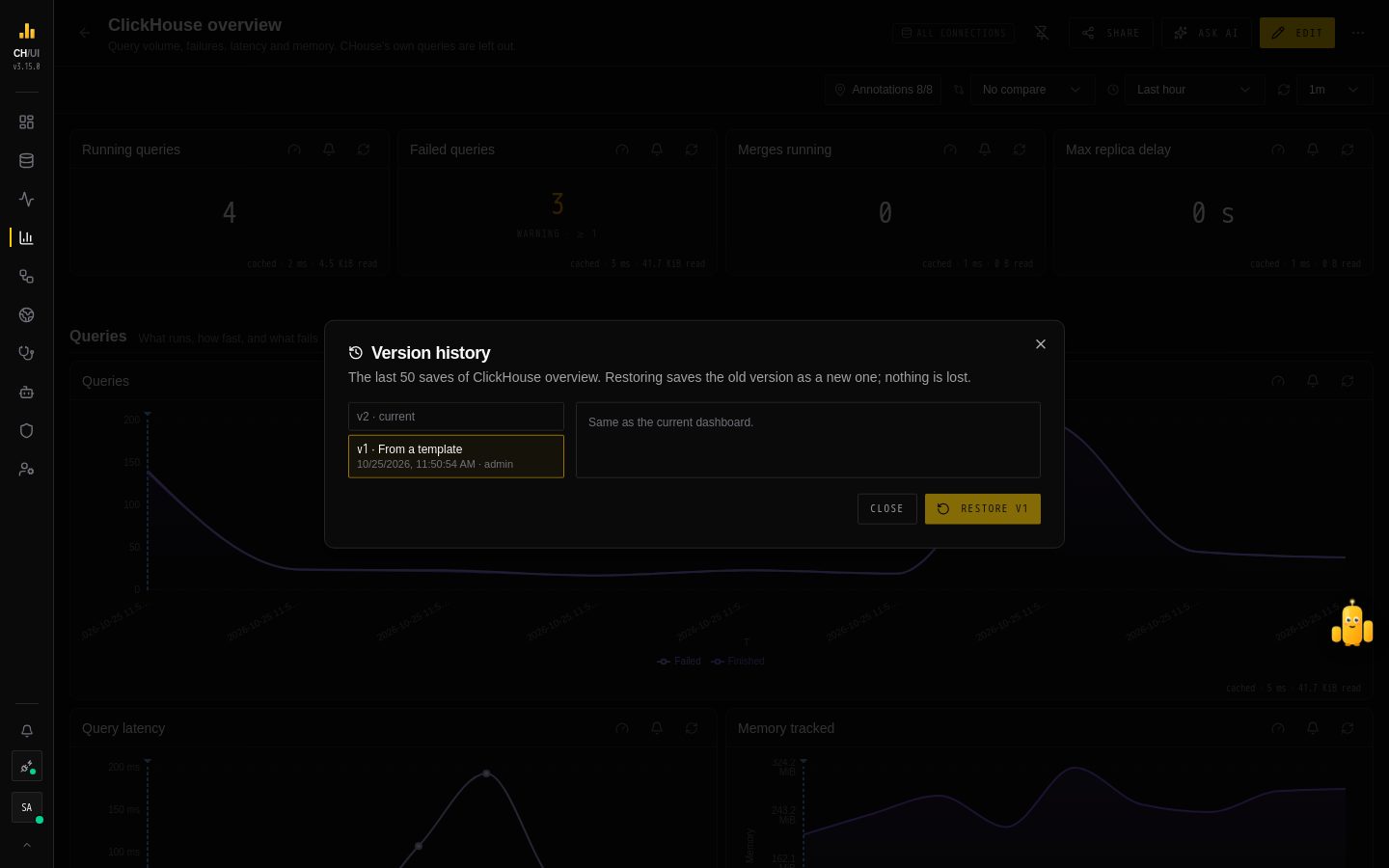 Version history: see what a restore brings back, removes and changes before you restore
3. See what changed
Line and area charts mark what happened along the time axis — DDL on the tables involved, ClickHouse upgrades, settings changes, new writers, panel alerts, incidents, fixes and notes. Click a marker for the details; choose which kinds show in Annotations on the view bar.
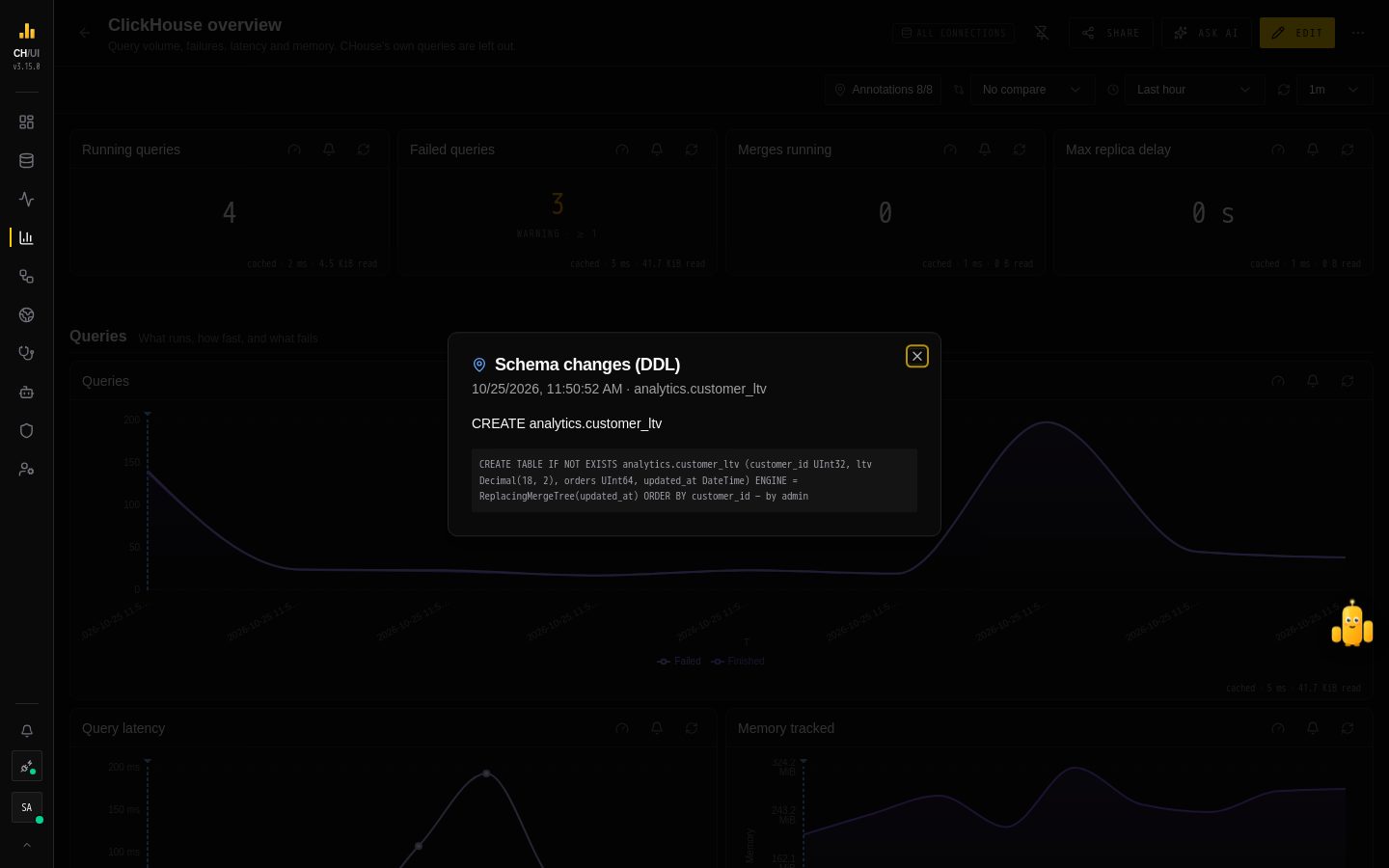 Markers along the time axis show what changed; click one for what happened
Drag across a chart to select a range, then:
- Zoom into it.
- Queries — the slowest queries in that range, in a SQL tab.
- Add note — "backfill started", for everyone who sees the dashboard.
- Explain this spike — Chouse AI reads the range against a week earlier, the changes, queries, mutations and merges, and gives the likely cause with its evidence. Add as note keeps it on the chart. Needs
ai:optimize.
4. Ask "is this normal?"
- Compare on the view bar draws each time series a day or a week earlier, dashed.
- Expected range in a chart's settings draws the band a value usually falls in at that hour, from the past 2 to 8 weeks. Add a panel alert to hear when it leaves the band.
5. Share what you saw
From More:
- Snapshots freeze every chart for the current range, for the roles you pick — useful in an incident, after the data has moved on.
- Scheduled reports send a daily or weekly digest to your alert channels, with a link back (needs
PUBLIC_BASE_URL).
6. Bring a Grafana dashboard over
Import on the dashboards list takes a Grafana dashboard JSON. Pick the connections it should run on and Preview the conversion: each panel shows whether it is Ready, what Changed (macros such as $__timeFilter rewritten, variables mapped) or why it was Skipped. Nothing is saved until Import N panels.
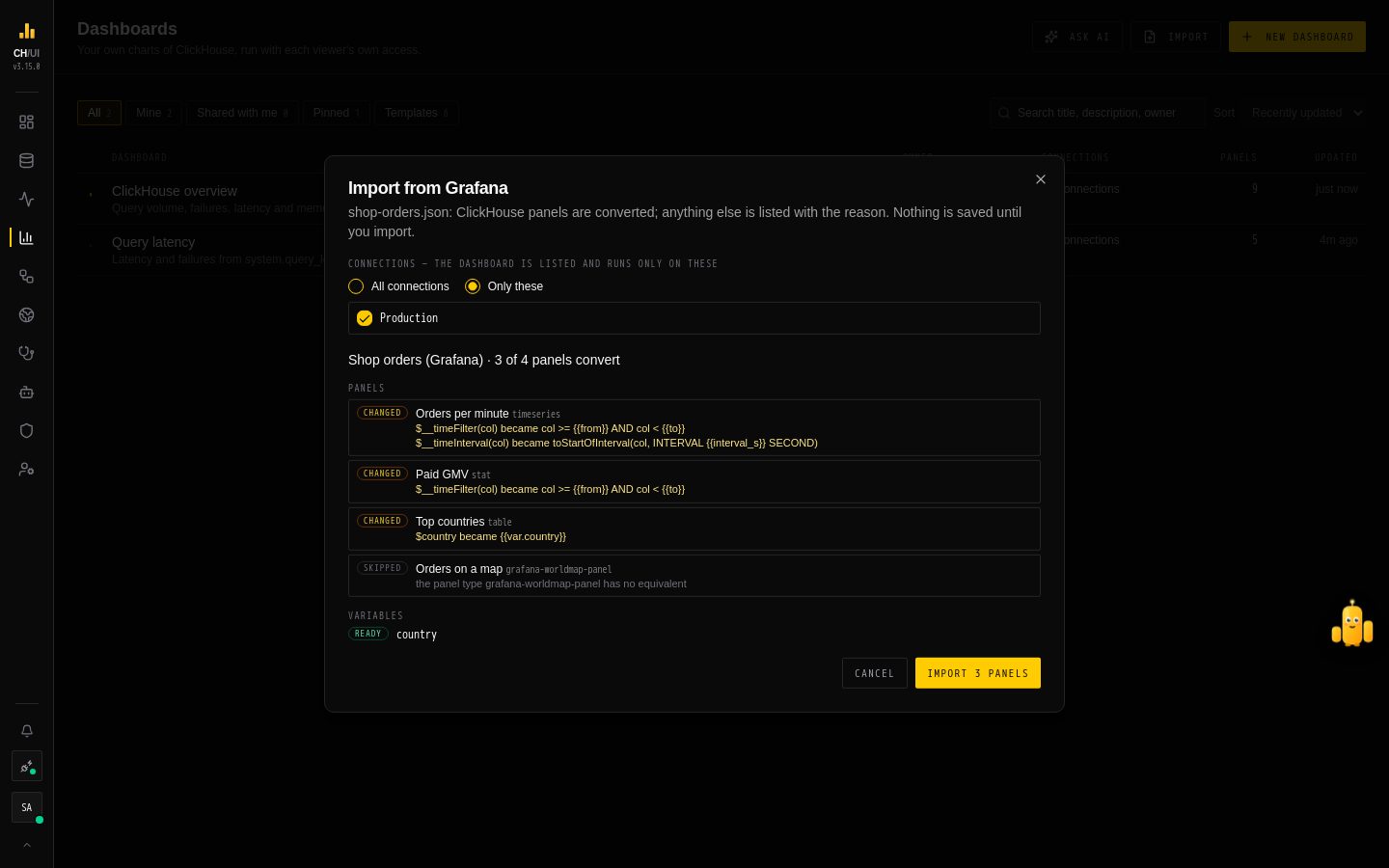 Import from Grafana: what converts, what changes and what is skipped, before you import
Next
- Dashboards — variables, drill-down, fleet panels, panel cost and rollups, limits.
- Draft dashboards with AI — the full-screen review, Refine and Regenerate.